Visualisation Modes and Types
Two choices shape a graph: the type, which decides what a circle stands for, and the mode, which decides how transactions between circles are drawn.
Both are set in the New Visualization dialog, in its second step.
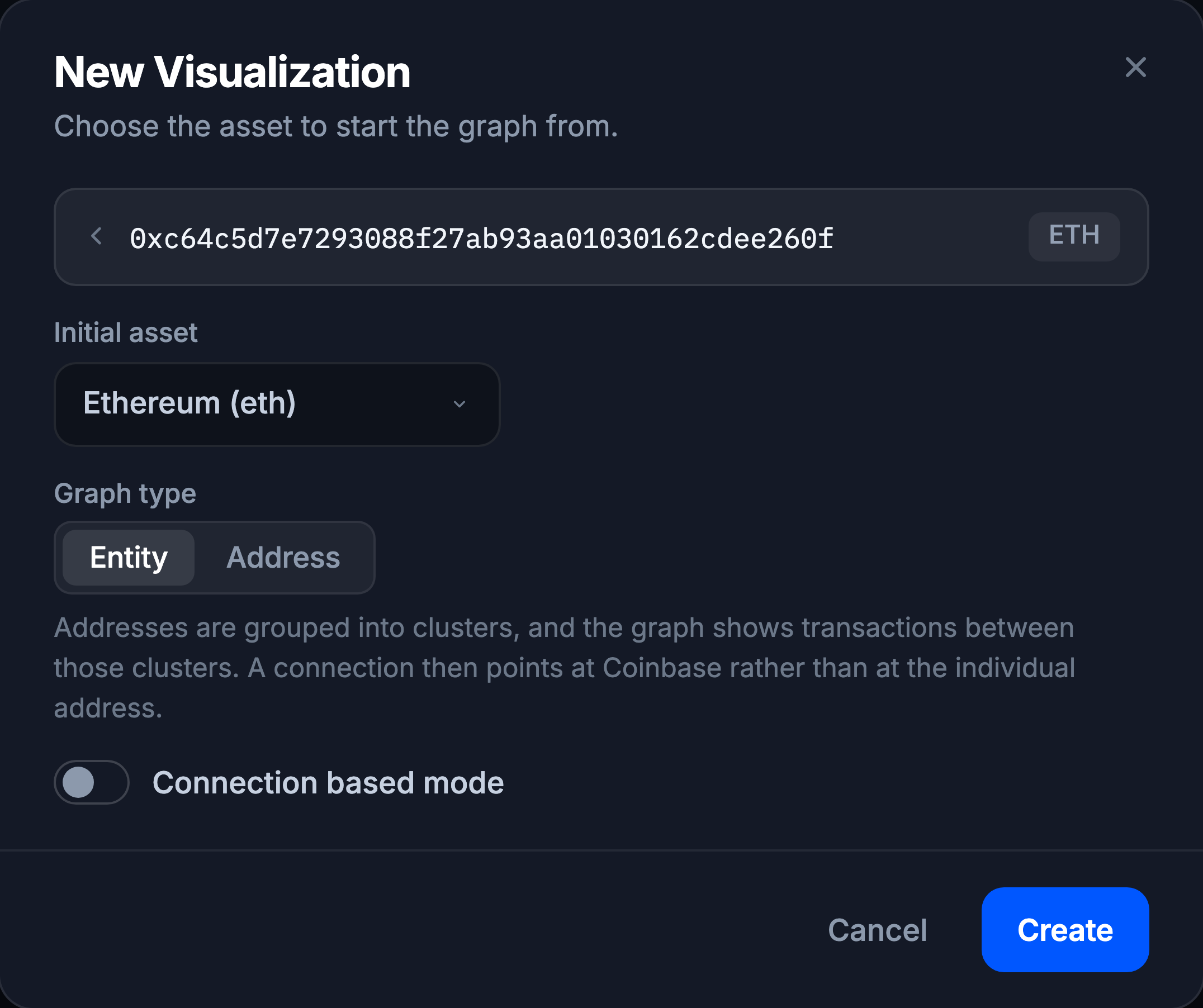
Graph type
Entity: addresses are grouped into clusters, and the graph shows transactions between those clusters. A connection then points at Coinbase rather than at one individual address. Best for seeing the shape of a flow: which services and businesses funds passed through.
Address: every circle is one address and every line one transaction between addresses. An address belonging to Coinbase still shows its own transactions, not Coinbase’s. Best for detail: exactly which address did what.
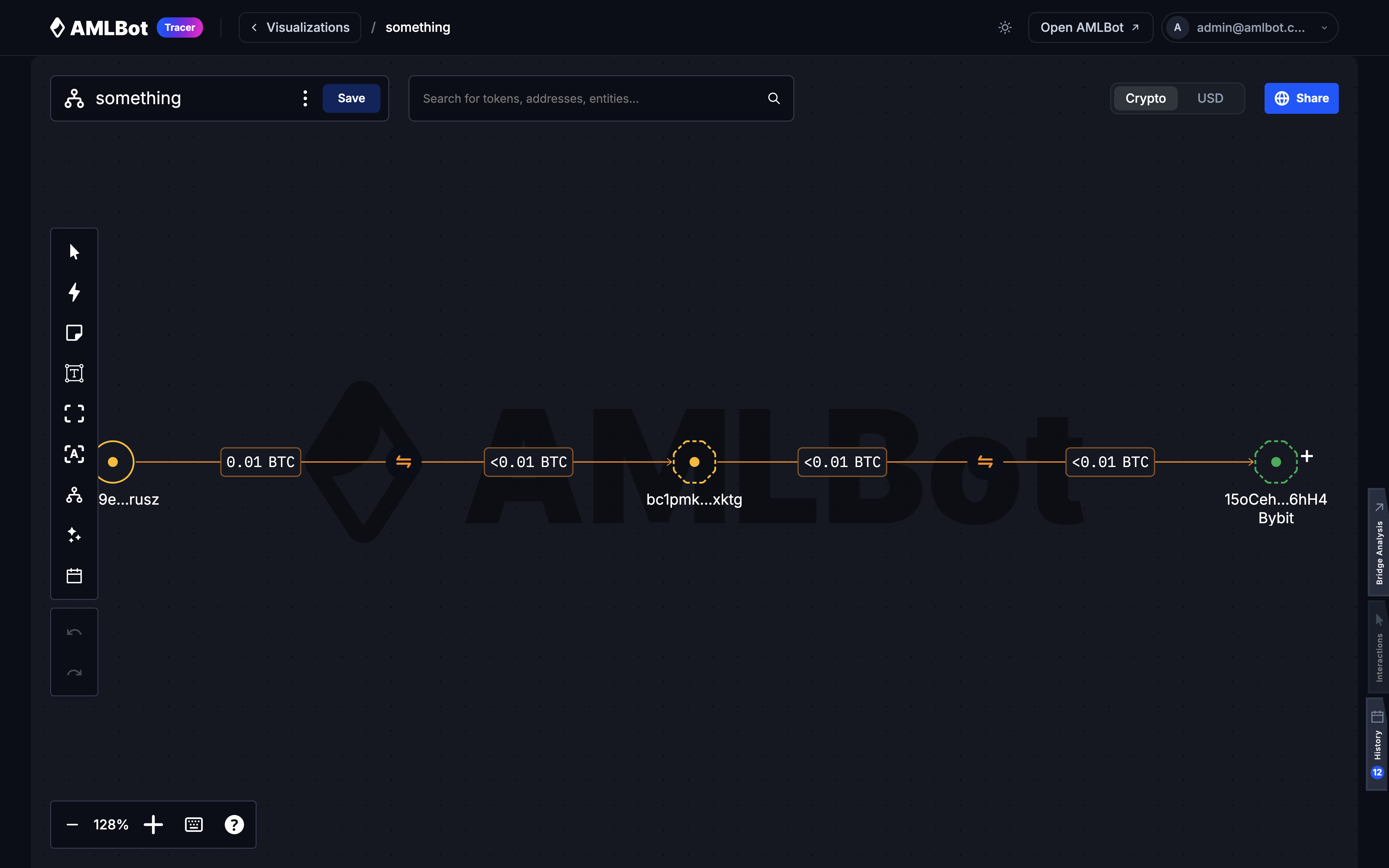
The choice is offered only when you start from an address. Starting from a business gives an entity graph and starting from a transaction gives an address graph; in both cases the target has already settled the question.
The type is fixed once the visualization exists. To look at the same funds the other way round, start a new visualization from the same target.
Modes
Default
One line per transaction. The most faithful view, and the busiest one.
Merged
Every transaction between the same two objects collapses into a single line carrying the total amount. Cuts clutter on graphs where the same pair transacts repeatedly.
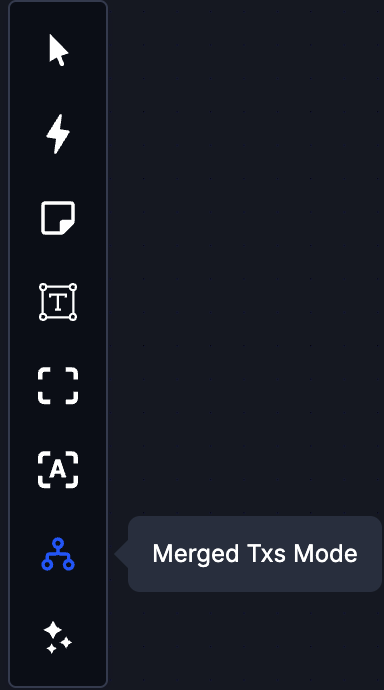
Toggle it with Merged Txs Mode in the left tool strip. Unlike the type, this can be switched at any time on an existing visualization.
Connection based
Set with the Connection based mode toggle when the visualization is created. Instead of individual transactions, the graph draws one connection per relationship, carrying the total of everything the two objects exchanged. Built for tracing who dealt with whom across a lot of activity.
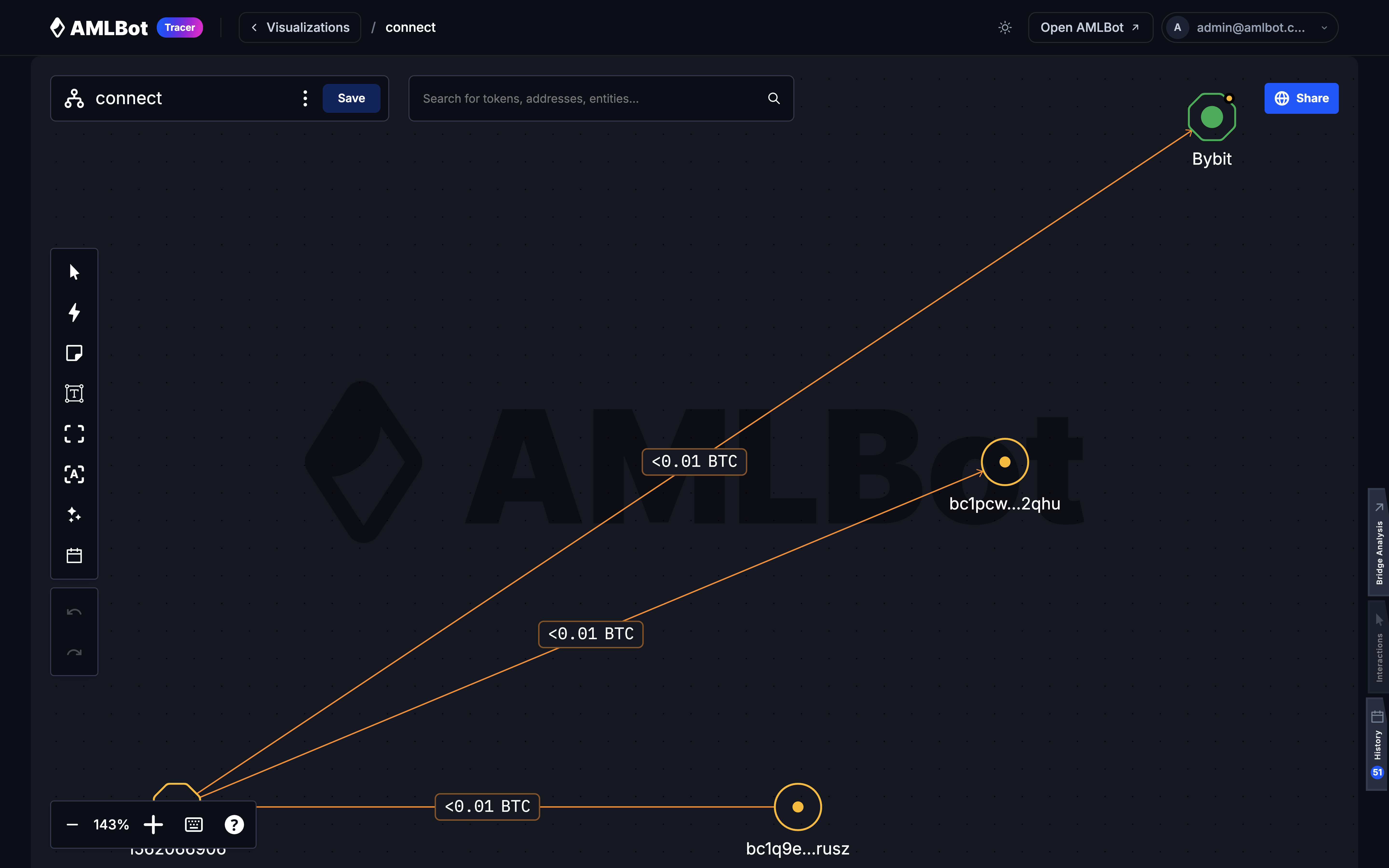
Connection based graphs differ in a few ways:
- Merged Txs Mode is not offered; the graph is already one line per relationship.
- The Crypto / USD toggle is not shown.
- The address view opens on its Direct tab rather than Transfers.
- Clicking a connection opens the Connections view.
Entity type with connection based mode is the combination to reach for on a first pass over an unfamiliar case: fewest objects, clearest shape. Switch to an address graph once you know which part of the flow matters.